A neural network takes one frame and draws seconds of motion around it: a person walks, turns, smiles, the camera drifts a little. It is not a montage of several shots but a new video whose first frame matches your photo. Below is a real example in Seedance 2.0: one photo, one prompt, a 10-second clip.
The source frame and the clip were generated in REFVIO with a fictional character, not footage of a real person.
What "animate a photo" means
The result depends on two things: how good the source frame is and how precisely the motion is described. If the prompt asks for many actions at once, the model starts to improvise and the face drifts from the original.
What you need
- A photo where the face, hands and clothes are clearly visible. A front-facing or slightly turned shot works best.
- Rights to the photo: your own, a photo of a person who agreed, or a frame of your AI character. Photos of other people without consent are not allowed.
- An idea of what you want to see in 5–10 seconds: one gesture, one turn, one camera move.
How to animate a photo in REFVIO
- Open the "Video" section and choose the "Animate photo" mode.
- Upload the source photo. The frame format is taken from the photo itself.
- Choose a model. The example uses Seedance 2.0.
- Describe the motion. You can write it yourself or ask the built-in helper to draft the prompt and edit it.
- Start the generation and compare the result with the source frame.
The price is shown before you start. According to the cabinet price list on 15 November 2026, ten seconds of Seedance 2.0 cost 100 credits in 480p and 250 in 720p. For a first test there are cheaper models: Seedance 2.0 Mini costs 40 and 80 credits per 10 seconds (480p and 720p), Seedance 2.0 Fast 75 and 150.
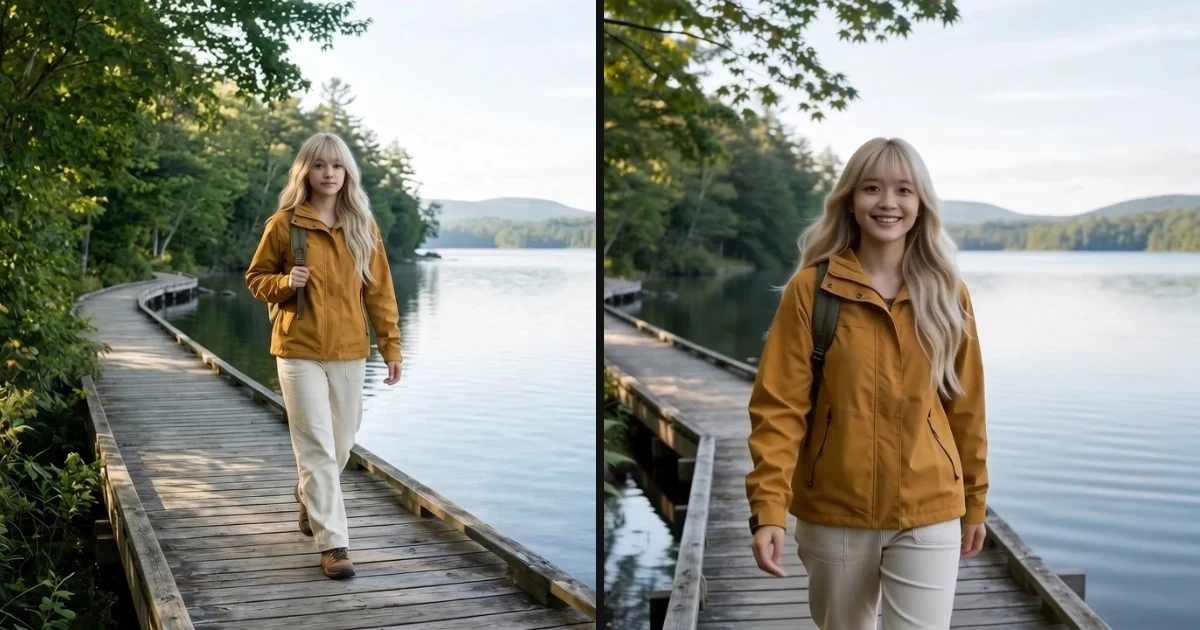
Source frame and result
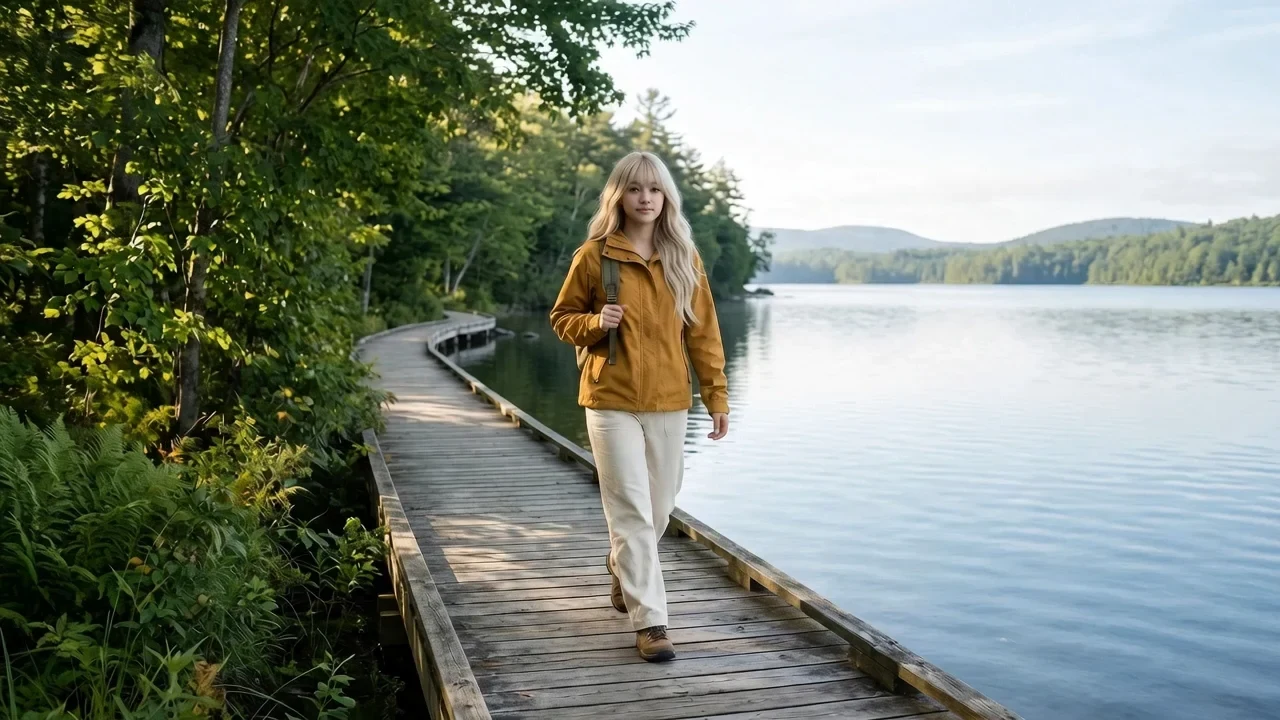
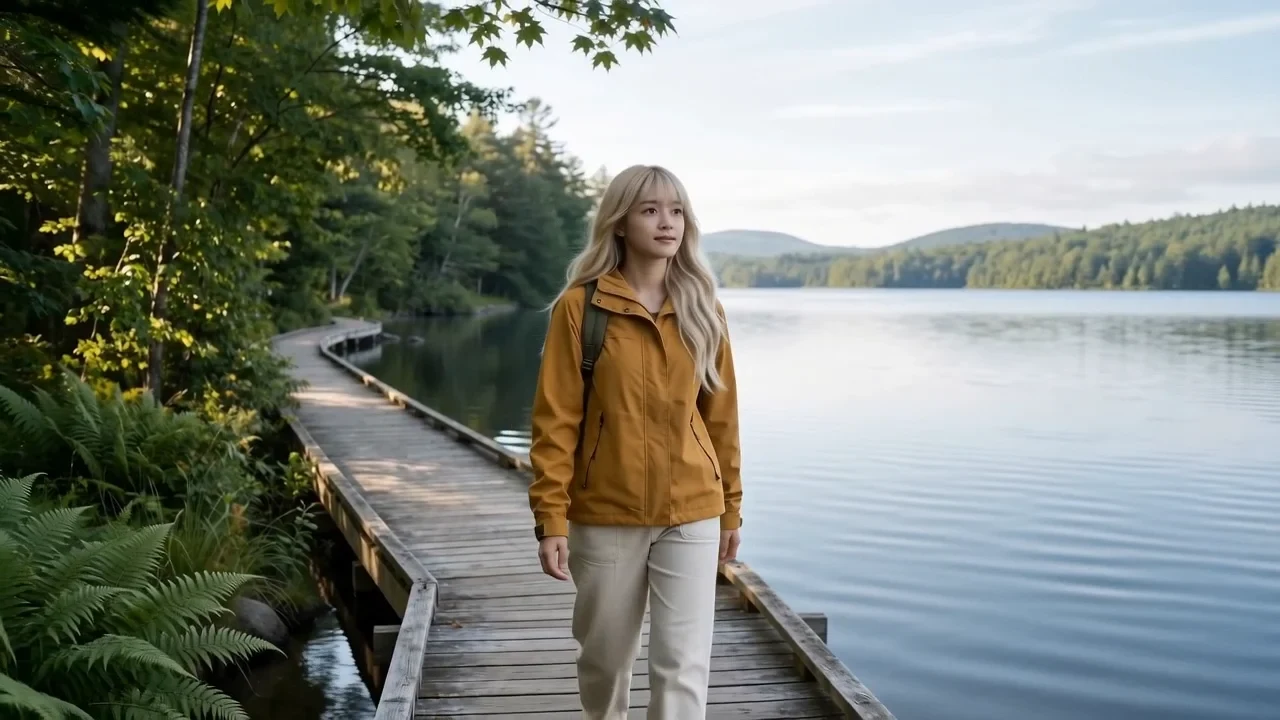
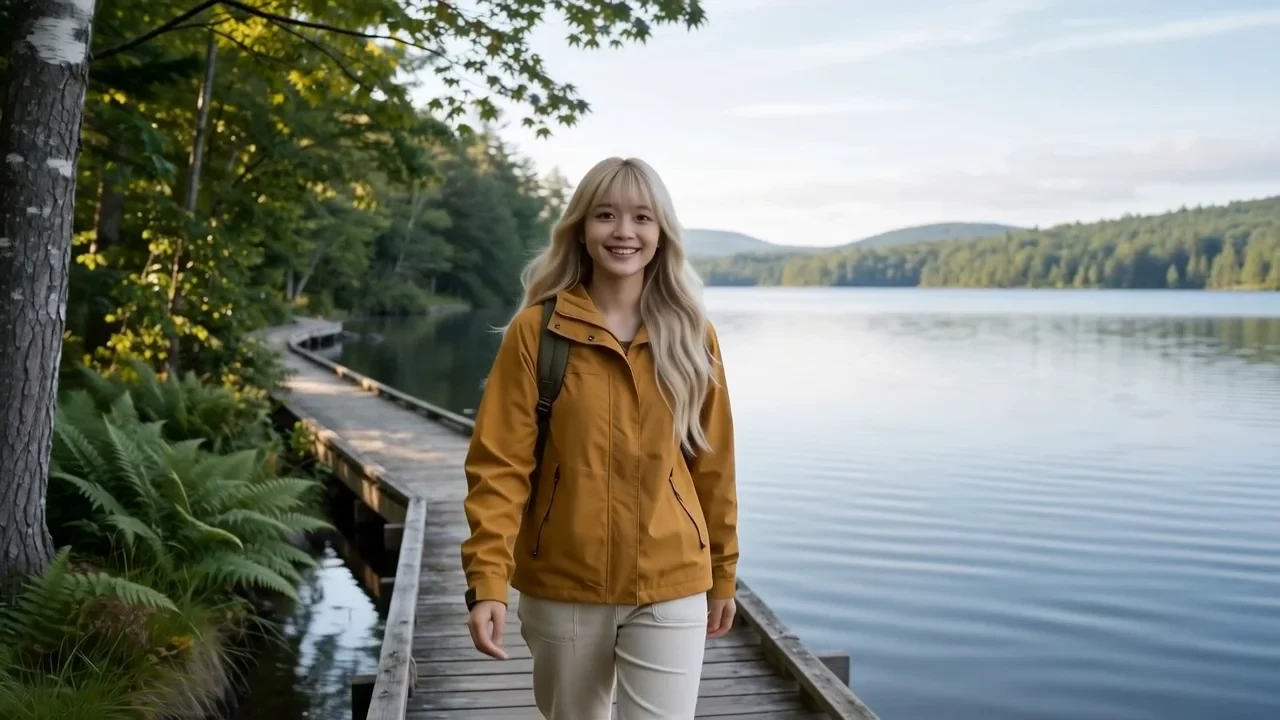
Settings: "Animate photo" mode, 10 seconds, 720p, sound on, format taken from the frame (16:9).
The prompt: a walk toward the camera
Write Seedance prompts in English for more precise results. This is the prompt behind the clip:
"Animate the supplied starting photograph as a dynamic travel video. The woman walks toward the camera along the lakeside path at a confident, relaxed pace, her whole body moving naturally. She brushes a strand of hair from her face with one hand, glances out over the lake, then looks into the camera and smiles. A fresh breeze moves her hair and jacket and ripples the water, and leaves sway in the trees on the left. The camera glides slowly backward on a smooth steady track with a gentle handheld feel, keeping her in a medium-wide shot. Keep the same face, hairstyle, jacket, trousers and location throughout. Natural walking gait, correct hands and fingers, realistic motion only. No scene cut, no text, no logos."
What matters in it:
- The motion of the woman and the motion of the camera are described separately: she walks forward, the camera moves back. That gives clear movement instead of a mere sway.
- Small living details such as wind, hair, the jacket and ripples on the water make the frame feel alive.
- A list of what must stay the same: face, hairstyle, jacket, trousers, place.
- A ban on extras: cuts, text, logos.
- This asks for more than a single head turn, so it is harder. If the face starts to drift, cut the prompt down to one action.
What came out and what to check
We compared six frames of the clip, from the first to the last. The face, blonde hair, ochre jacket and beige trousers stay the same from start to finish. Around the two-second mark the woman brushes a strand of hair aside with her hand, and by the end she walks up to the camera and smiles. No obvious glitches show on these frames, but six frames are not the whole clip: watch your own clip in full. The clip has sound on, and we do not review the audio here.
Where the result breaks
The model does not guarantee that the face stays exactly the same. Most often the problems are:
- The face. Features shift slightly in the middle of a clip, especially on a head turn or a close-up.
- Hands. Fingers merge, change in number or vanish for a second.
- The background. Objects behind the subject float when the camera moves.
- The eyes. Blinking and the direction of the gaze look unnatural.
- Sharp motion. The faster the movement, the more details get lost.
How to check the clip before you publish it
- Pause on the first and last frames and compare the face, hair, collar and jewellery.
- Watch the hands at the busiest moment of the clip.
- Check the edges of the frame for flicker.
- Watch the whole clip, not only the first seconds.
If the face drifts, shorten the motion: a smaller turn, slower, no change of shot. If the problem is the hands, hide them in the frame or start from a source where they rest calmly. Generation is not deterministic: a repeat with the same prompt gives a slightly different video.
FAQ
How many seconds can I make? In our example, 10. The allowed range depends on the model and is shown in the settings before you start. For a first test 5–10 seconds is enough.
Can I have sound? In this example sound is switched on in the generation settings.
Why does the face change? The model redraws every frame, so an exact match is not guaranteed. Start video from a frame where the face is large and free of shadow. The causes and checks are covered in the article "Why AI Changes Your Face in Photos and How to Stop It".
Can I animate someone else's photo? Only if the person in it has given consent. The rules are on the Safety page.
Do I need to label the clip as AI? Yes. When you publish to TikTok, Instagram or YouTube, switch on the AI content toggle in the platform itself and do not pass the clip off as ordinary footage.
A quick check before you save
- The first and last frames match in face, clothes and light.
- The motion is single and clear.
- Hands and eyes without glitches.
- No text, logos or cuts.
- The clip is labelled as AI content on the platform.